Review requests in your customer's language
If half your patients or customers speak Spanish, an English-only review request gets skipped. Review Machine sends the invitation, the review page and the draft in each person's own language: English, Spanish or Arabic. You set the language once per customer, by hand or from your patient list. They read a short draft in their language, change it to match their visit, and post it on Google from their own account.
Transcript
0:00 English-only requests get skipped
Half your patients speak Spanish. Your review request shouldn't be in English only. Our Spanish-speaking patients just skipped the English email.
0:13 Turn on languages, set each patient's
Turn on the languages your patients use: English, Spanish or Arabic. Then set each patient's language when you add them, or bring it in from the language column of your patient list. Write the invitation once per language. Each patient gets their own.
0:37 Her email and her page, in Spanish
Lucía gets hers in Spanish. Her review page opens in Spanish too.
0:51 Her draft, her words
She gets a short draft in Spanish, based on her visit. She changes what she wants. It's her review, in her words. Then she posts it on Google herself. Patients can also switch languages at the top. Arabic reads right to left.
1:13 One month in the demo account
In this demo account, 92 patients were invited last month, in English or Spanish. 17 told us they posted. Start with a free check of your listing.
What the owner does
Five steps, each shown in the video. The stills are frames from the video.
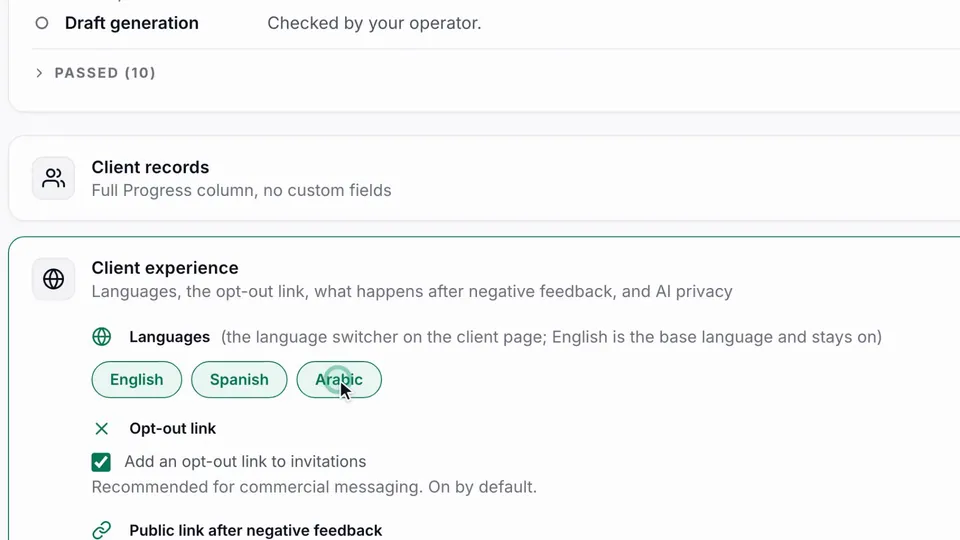
Turn on your languages
In Settings, under Client experience, switch on Spanish or Arabic next to English.
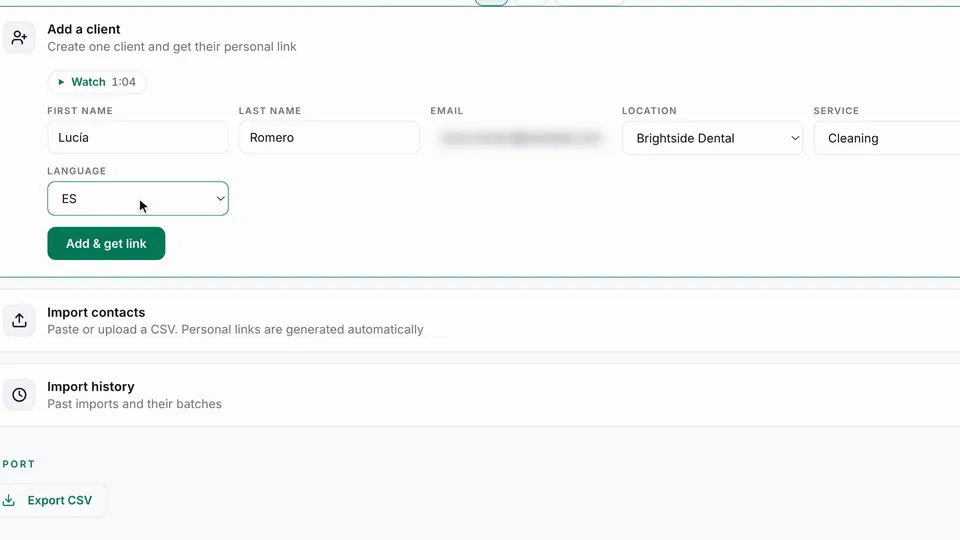
Set each customer's language
Pick it when you add someone, or import a language column such as preferred_language from your CRM.
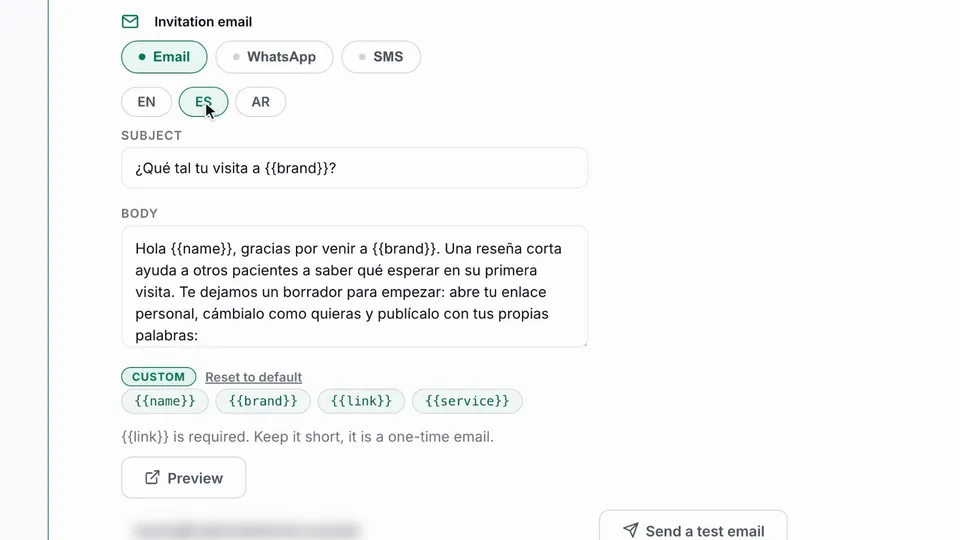
Write the invitation per language
Each language has its own email text, so it sounds like your business, not a translation.
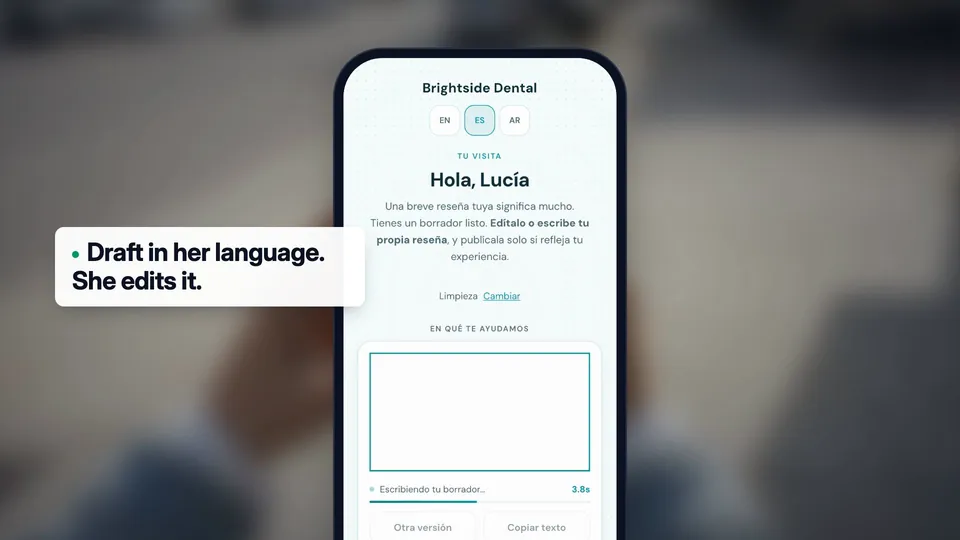
They review in their language
The page and the draft open in their language. They edit the draft and post it on Google themselves.
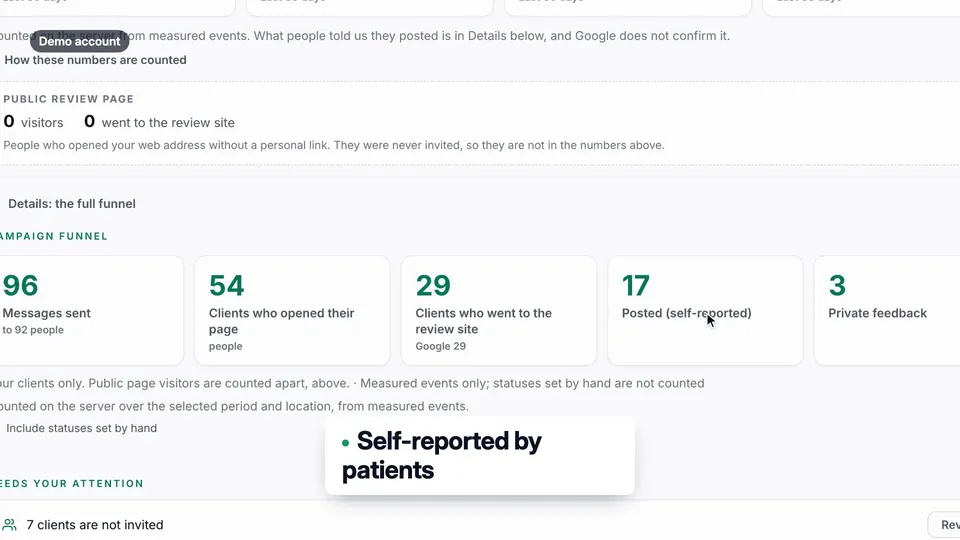
Track it on one screen
Overview shows who was invited, who opened the page and who says they posted.
Good questions. Clear answers.
How does Review Machine know which language to use?
Which languages are supported?
Is the Spanish draft just a translated English review?
More customer stories
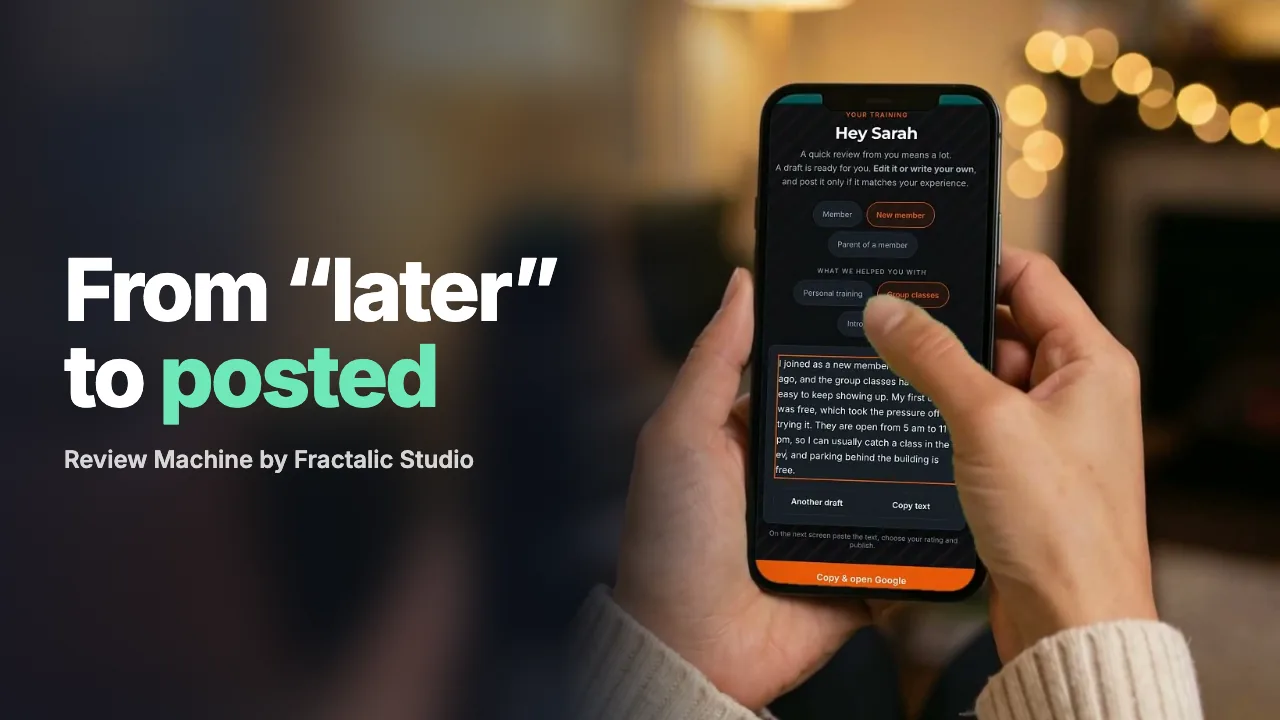 From "I'll do it later" to a posted review in a minute
Most happy customers don't refuse to leave a review. They just never get to it.
Watch the story (1:12) →
From "I'll do it later" to a posted review in a minute
Most happy customers don't refuse to leave a review. They just never get to it.
Watch the story (1:12) →
 When a customer is unhappy, you hear it first
An unhappy patient will tell someone. Make sure you hear it too.
Watch the story (1:20) →
When a customer is unhappy, you hear it first
An unhappy patient will tell someone. Make sure you hear it too.
Watch the story (1:20) →
For your industry: Medical transportation and Home services. All use cases →